Updated October 14, 2026. Written for EffectCraft 0.9.2 (what changed since).
That system is why we'd pick a compositor over a template site for title work. A template gives you one canned motion. An animator lets you say "every character starts 40 pixels lower and invisible," and a selector decides which characters are still offset at each moment. Change the selector and the same animator becomes a typewriter or a word-by-word pop.
The fastest way: a text preset
- Open effectcraft.run/editor and choose File › New › New Project. The first visit downloads the app, so give it a moment.
- Make a composition with Composition › New Composition…: 1920 x 1080 at 30 fps and 5 seconds is a good start for a title.
- Add text with Layer › New › Text and type your line. Set the font, size and color in the Character panel.
- Put the playhead where the animation should start. Preset keyframes begin at the current time.
- Apply a preset. In the Effects & Presets panel, open * Animation Presets and double-click a text preset with the layer selected.
- Preview with the Spacebar, then render with Composition › Add to Render Queue and Render. The default output is an H.264 MP4, and it downloads when it finishes.
What each preset does
The last column matters if the text is headed for a website or app as a Lottie file, where only part of a text animator survives.
| Preset | Motion | Length | Survives Lottie export |
|---|---|---|---|
| Typewriter | Characters appear one at a time with a hard edge | 2 s | Yes |
| Fade Up Characters | Characters fade in while rising into place, left to right | 1.5 s | Yes |
| Bounce In Words | Words scale up from nothing with an overshoot, one after another | 1.5 s | Yes |
| Tracking In | Tracking closes from 400 to 0 while the text fades in | 1.6 s | Yes |
| Drop In Lines | Lines drop from above with a slight rotation, one after another | 1.4 s | Yes |
| Blur In | Characters come into focus and fade in, left to right | 1.4 s | Partly: the blur is dropped |
| Scramble | Letters cycle through random characters before settling | 2 s | No |
| Jitter | Characters wobble in position and rotation, without stopping | Continuous | No |
Scramble and Jitter rely on a Wiggly selector or the Character Offset property, and Lottie has neither. Blur In keeps its fade and scale in a Lottie file but loses the blur. Every preset is an ordinary animator once applied, so twirl the layer open in the Timeline and change any value or keyframe it set.
Build your own text animator
Here is Fade Up Characters rebuilt by hand, which shows every part of the system. Select the text layer, then use Animation › Animate Text (or the Animate pop-up on the layer's Text group in the Timeline):
- Add the properties. Choose Opacity, then use the animator's Add pop-up for Position. Set Opacity to 0% and Position to 0, 40. Every character is now invisible and 40 pixels low, because the default Range Selector covers 0% to 100% of the text.
- Animate the selector. Twirl open Range Selector 1. At the start time, set Offset to -100% and click its stopwatch. Move 1.5 seconds later and set Offset to 100%. The selected range now slides off the text from left to right, and each character falls back to its normal place as the range leaves it.
- Soften it. Under Advanced, set Shape to Ramp Up and raise Ease High and Ease Low to 50%. Characters now settle gradually instead of popping.
- Change the unit. Based On switches between Characters, Characters Excluding Spaces, Words and Lines. Words gives the word-by-word reveal common in short-form video.
The animator properties go well beyond position and opacity: anchor point, scale, skew, rotation, tracking, line spacing, character offset, blur, fill and stroke color, hue and brightness, stroke width, and per-character 3D (Enable Per-character 3D lets each letter rotate and move in depth). Stack several animators on one layer; each has its own selectors.
Add Text Selector gives two more selector types. A Wiggly selector randomizes how much each character is offset, with Wiggles/Second and Correlation controls; it is what makes Jitter shake. An Expression selector computes the amount per character with an expression, using textIndex and textTotal. Our guide to expressions in the browser covers how to add and edit them.
Get the timing right
Linear keyframes make text feel mechanical. Select the keys and press F9 for Easy Ease, then open the Graph Editor to shape the curve. Long, gentle tails at both ends make each character land instead of stopping dead.
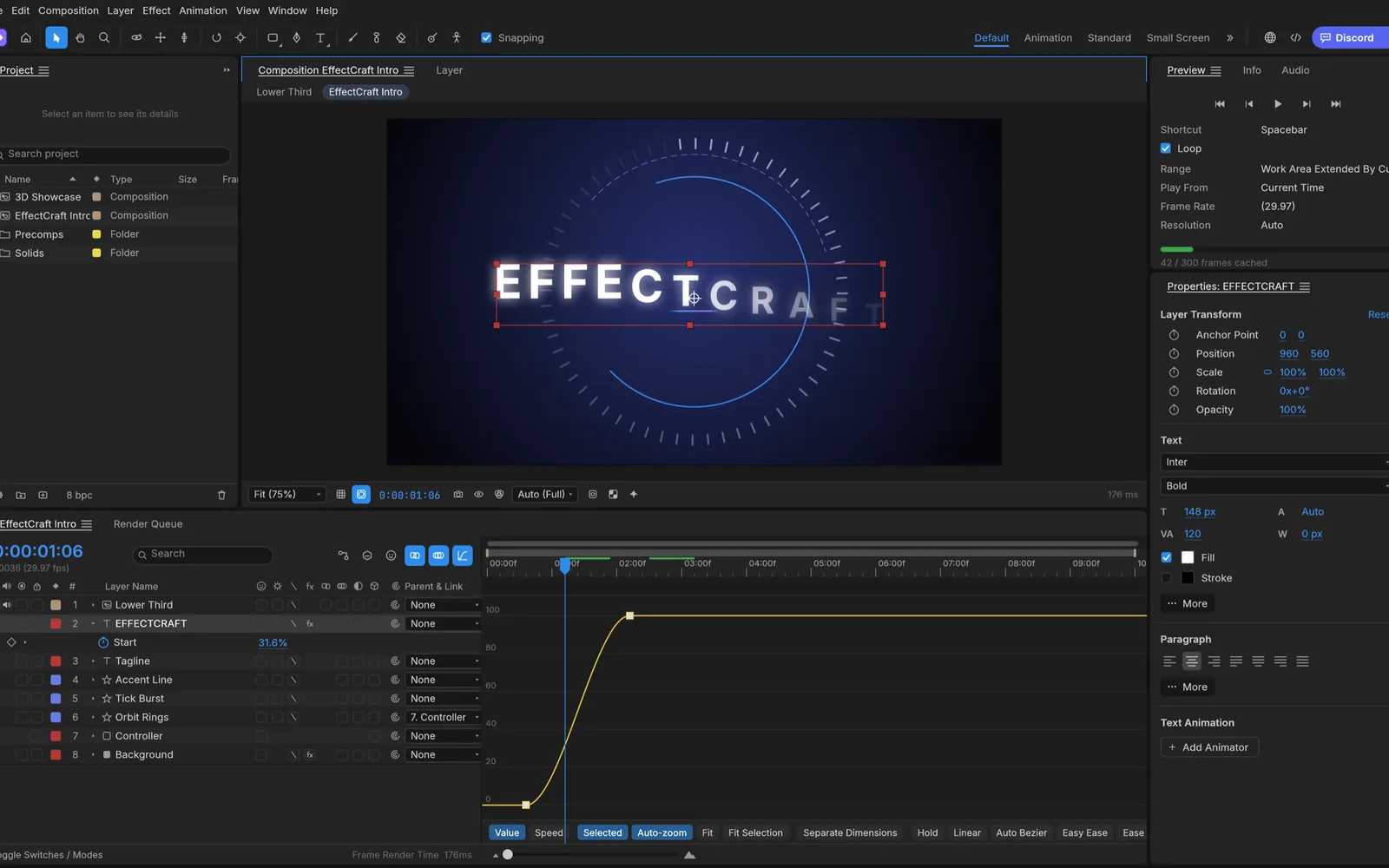
For a 30 fps title we start at 12 to 20 frames for each word to arrive and a 2 to 4 frame gap between words, then adjust by eye. With a range selector you set that rhythm through the spacing of the Offset keyframes and the Based On unit, not by moving each word.
Fonts in the browser
The online editor has three fonts: Inter, Noto Serif and JetBrains Mono. A web page can't read the fonts installed on your computer, and the browser build has no way to load a font file. Inter covers most clean titles, and the Character panel's tracking, leading, faux bold and faux italic give you room to vary it. Chinese, Japanese and Korean text still has open layout bugs.
If the job needs a brand typeface, the desktop app is the same program and lists every font installed on your machine. A project saved online (File › Save downloads an .ecproj) opens there, and the text switches to your font once you pick it.
Where the animated text goes next
- A finished video: the default H.264 MP4 from the Render Queue.
- An overlay for another editor: render with an alpha channel, as ProRes 4444 or WebM. See how to export a video with a transparent background.
- A website or app: File › Export › Lottie JSON… writes a small vector file. Text stays live text that names its font, so the player needs that font. Making a Lottie animation without After Effects covers what else changes in the export.
- A background or texture behind the words: the AI tools generate one and add it to the comp as a layer.
A good first test: type a three-word title, apply Fade Up Characters, set Based On to Words, ease the Offset keys with F9 and render a 3-second MP4.